Marine Advisory: 15/2020 - Flag State Inspection - New Corrective Action Report and Appeal submission process
23 April 2020
Marine Advisory 15/2020
Subject: Flag State Inspection - New Corrective Action Report and Appeal submission process TO: ALL OWNERS/OPERATORS AND MASTERS OF LIBERIAN FLAGGED VESSELS
Dear Shipowner/Operator:
The Liberian Registry has introduced a new way of submitting Corrective Action Reports to the Administration for Flag State Inspections.
Purpose
The purpose of this Advisory is to inform Owners/Operators that the Administration has developed new software to allow for easier interaction and submission of Corrective Action Reports and also gives the opportunity to appeal findings. The Advisory also provides training on how to utilize and submit Corrective Action Reports and Appeals with this new software.
Discussion
This newly developed software will make the submission of Corrective Action Reports and Appeals much simpler. There is no longer a need for emailing Corrective Action Reports with attachments, and wondering if the information was received by the Administration. The Administration’s new software system will make all of this much easier.
The Administration has developed guidance for vessel operators when they use the new software system to upload Corrective Action Reports for Flag State inspections. The guidance has been attached to this Marine Advisory for your use.
The new software system was launched April 18, 2020, and the vessel operator will now start to receive emails from our new software system requesting corrective action reports and instructions for what is requested.
Please contact the Fleet Performance Department at Prevention@liscr.com if you have any questions.
* * * * *
Client Corrective Action Report Training
- The first step in this process will be to login to your account as pictured below
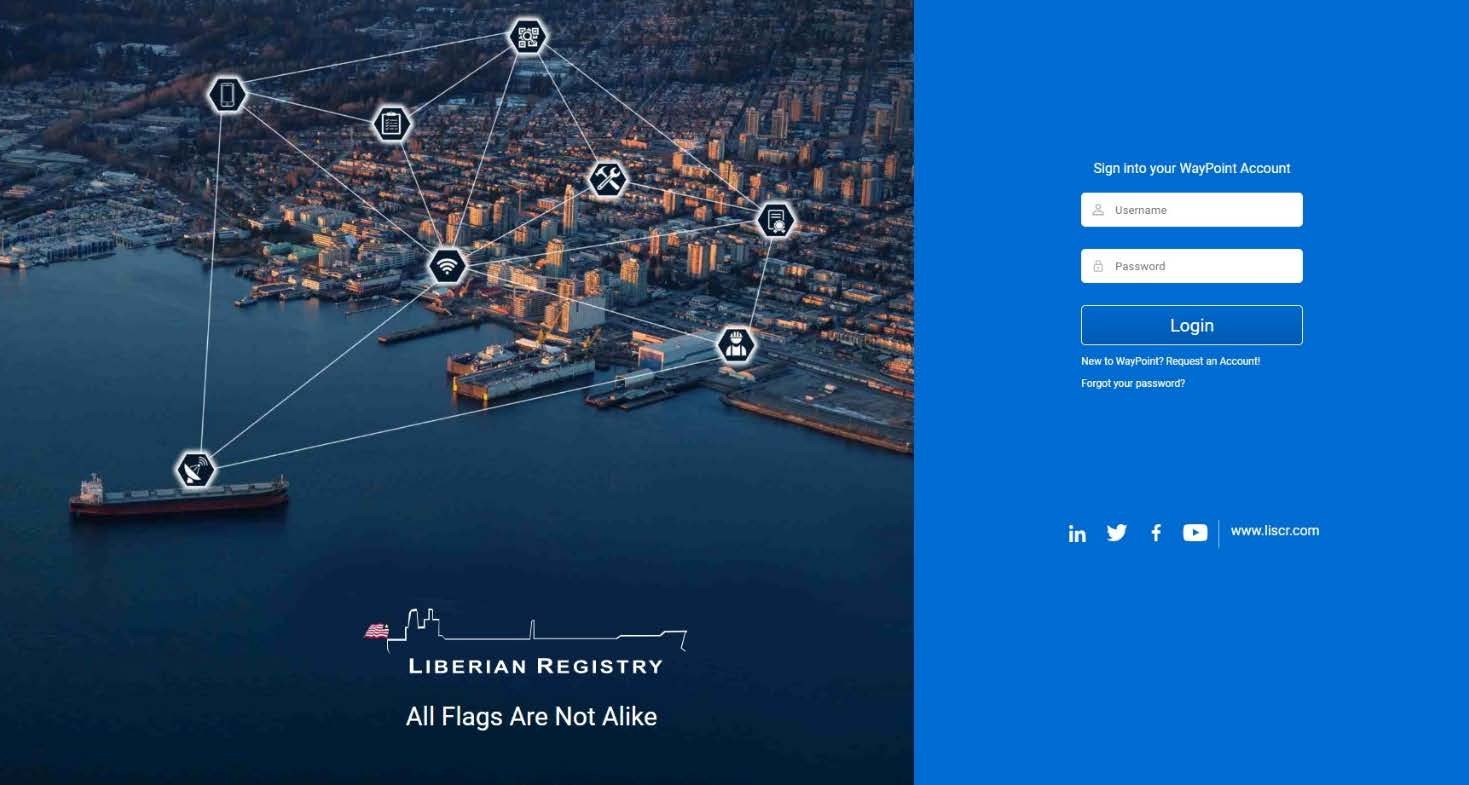
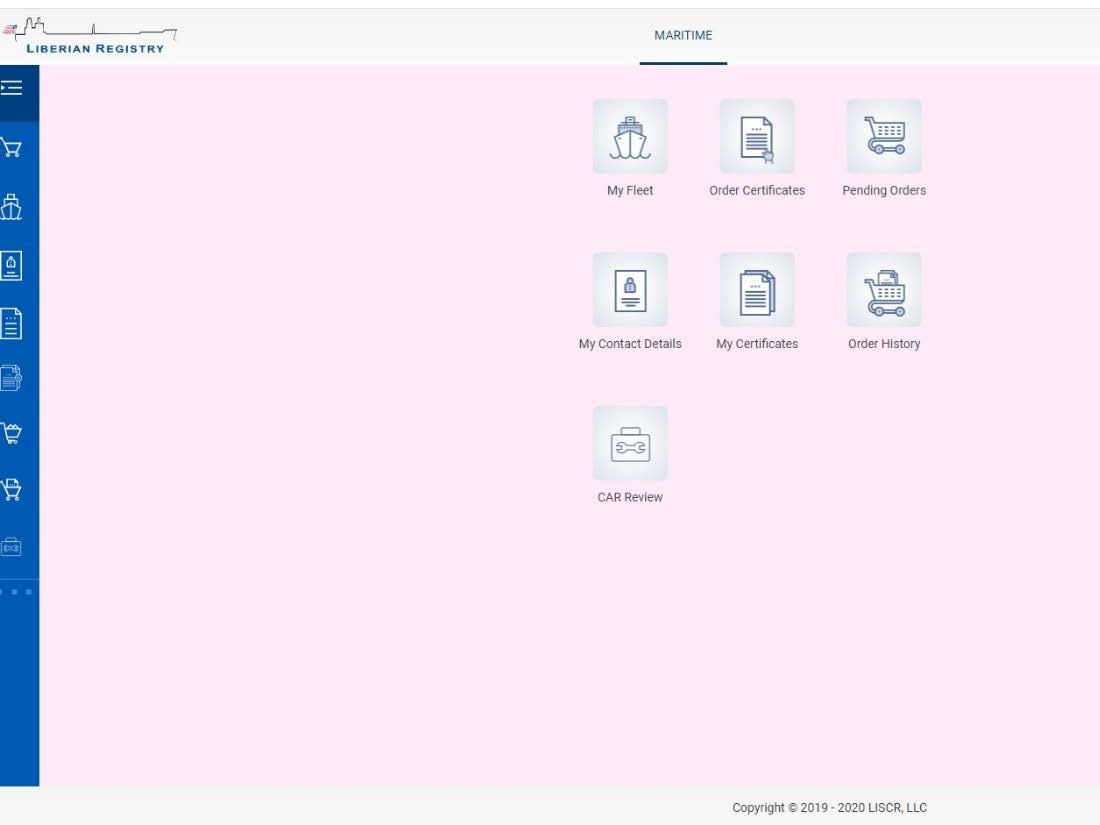
- Once logged in, you will find a series of icons to choose from. Select the “CAR Review” icon at the bottom as seen below.
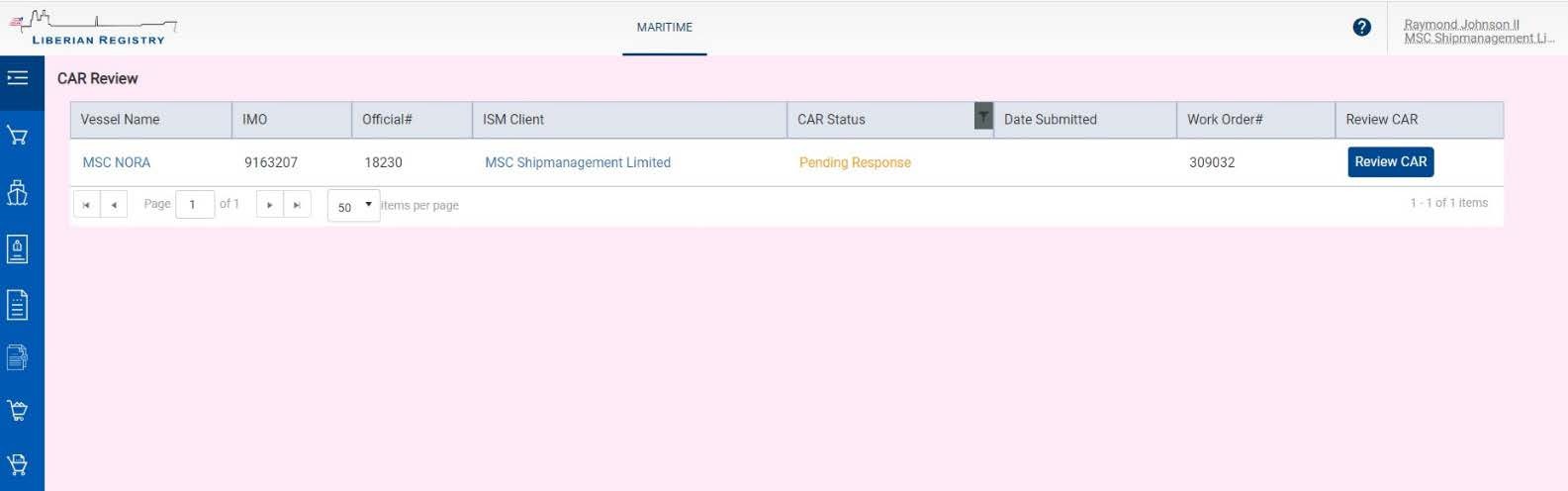
- Once the CAR Review icon is selected, you will be brought to the screen below to choose which CAR you would like to review. Once you determine which CAR you would like to review click the blue “Review CAR” button as pictured below.
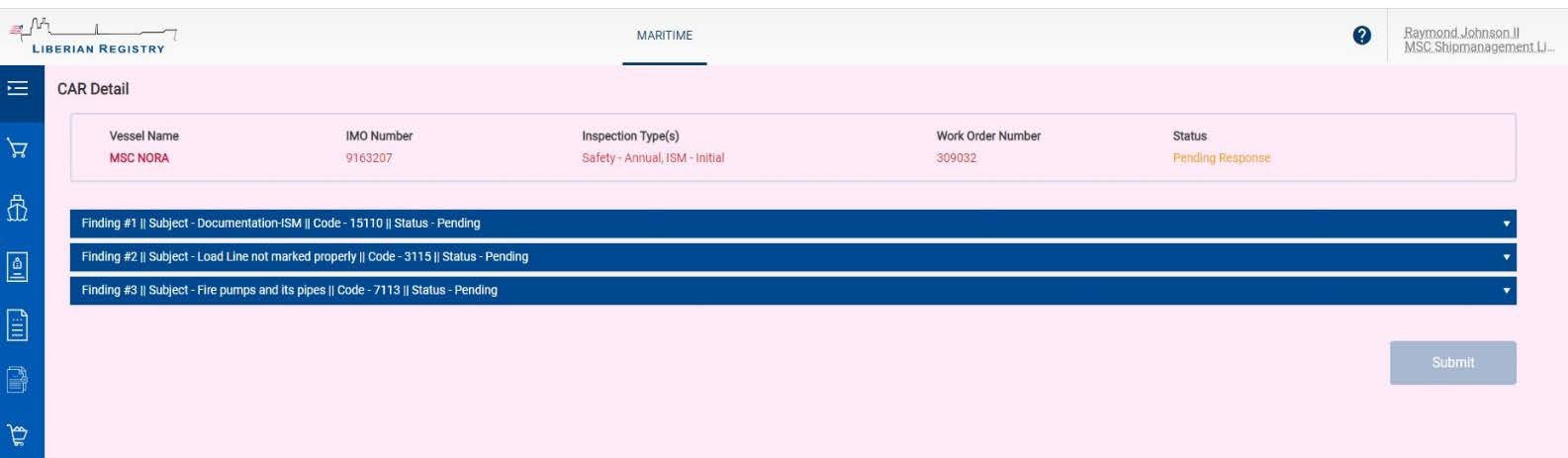
- Once the “Review CAR” button is clicked you will be brought to the screen below. Each blue bar is an individual finding that will need to be addressed with a Corrective Action Report.
- After selecting a finding, the following screen will appear. You can either choose to “Add Corrective Action Report” or “Appeal” as seen below.
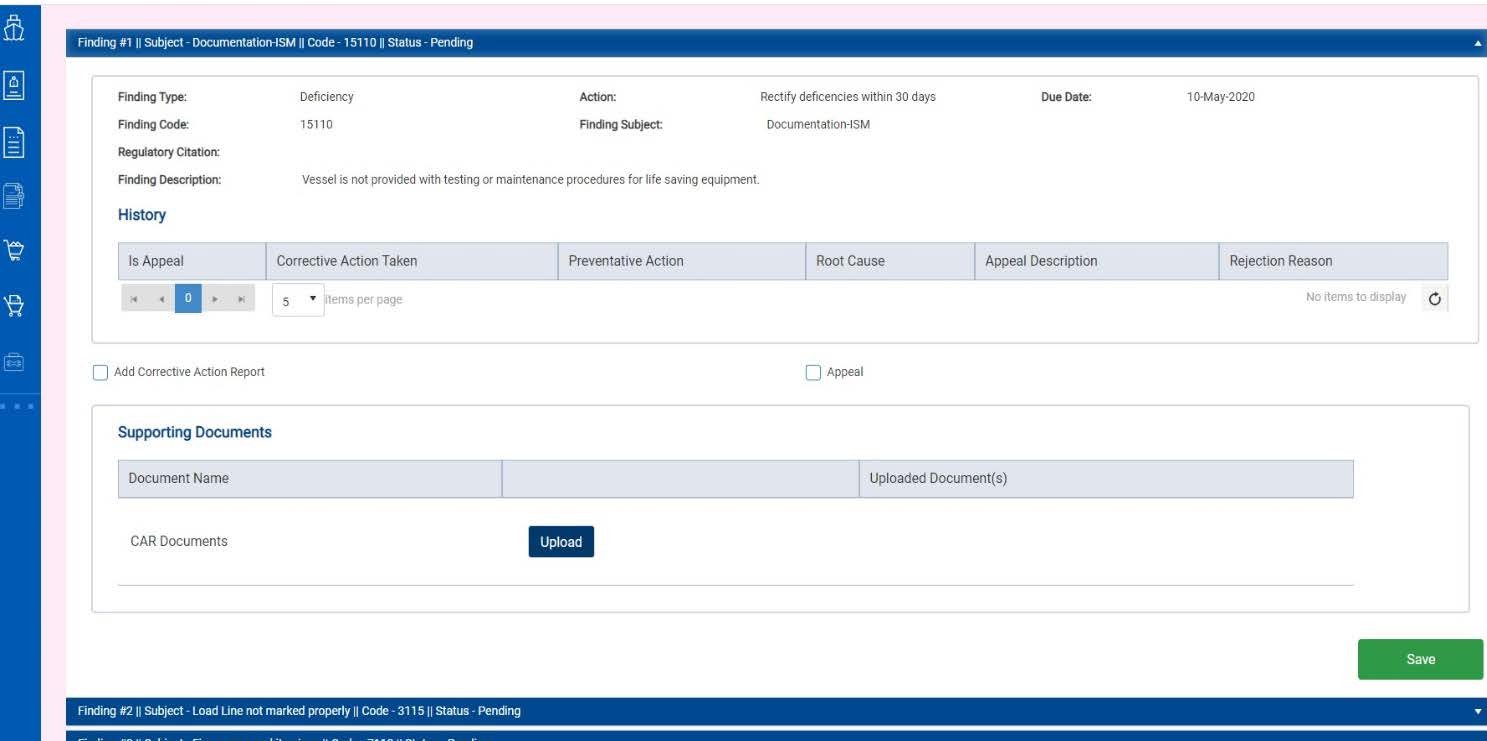
- When selecting to “Add Corrective Action Report” the below information boxes appear. Provide the Corrective Action Taken, Preventative Action, and the Root Cause in the respective spaces.
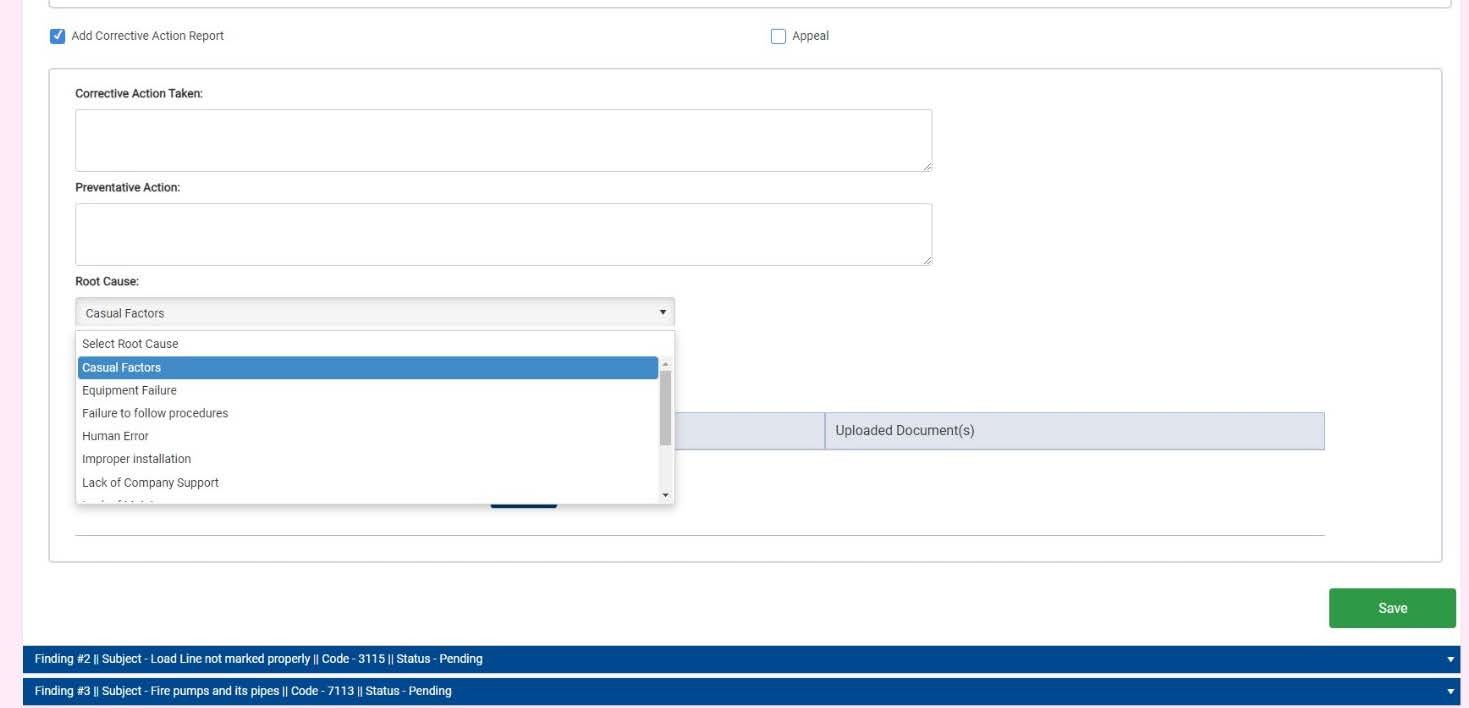
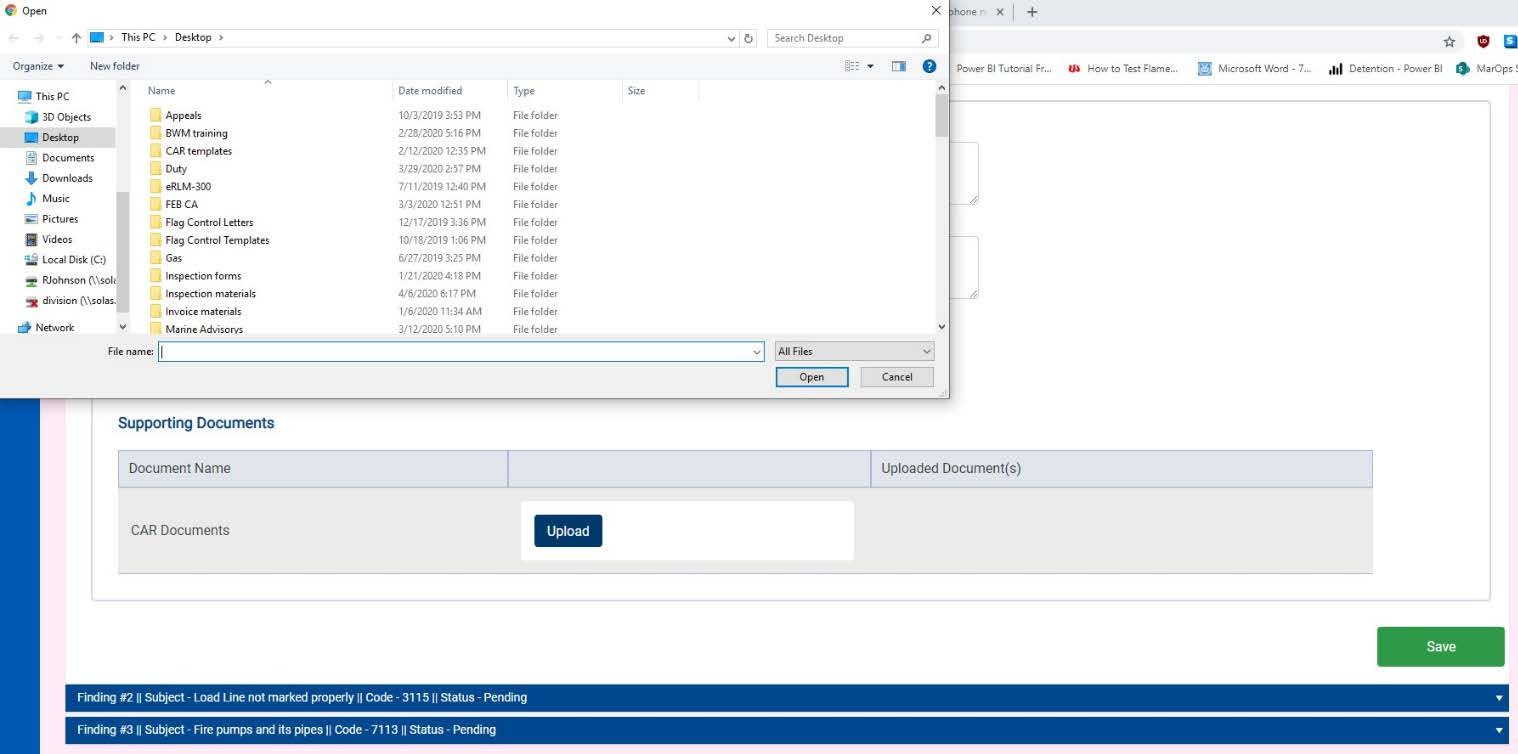
- After the corresponding information has been provided above. You can then upload any supporting documentations such as pictures and item requisitions by clicking the blue “Upload” Button. When selected, a window will appear to allow you to select which file you would like to upload. Be sure to name each file appropriately so that the file can be easily be identified and how it relates to the CAR. After filling out the corresponding boxes and have uploaded the associated information, press the green “Save” button.
8.
Repeat these steps 4-7 for each finding.
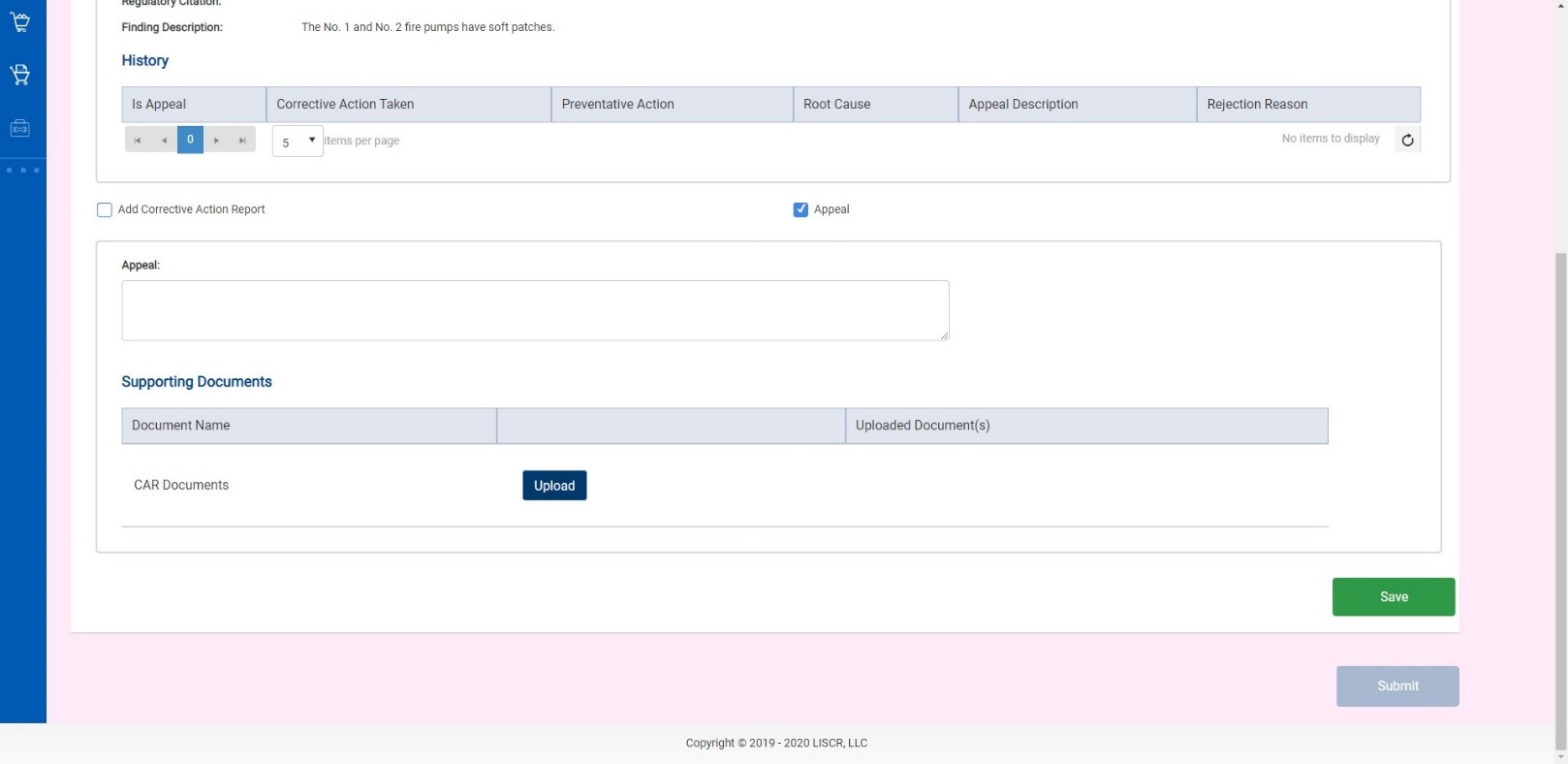
- If you would like to Appeal a finding, select “Appeal” and provide an explanation as to why you believe the finding is incorrect. You will also find that you can upload supporting documentation below. Once the information has been provided and the supporting documentation uploaded, save the information by clicking the green “Save” button.
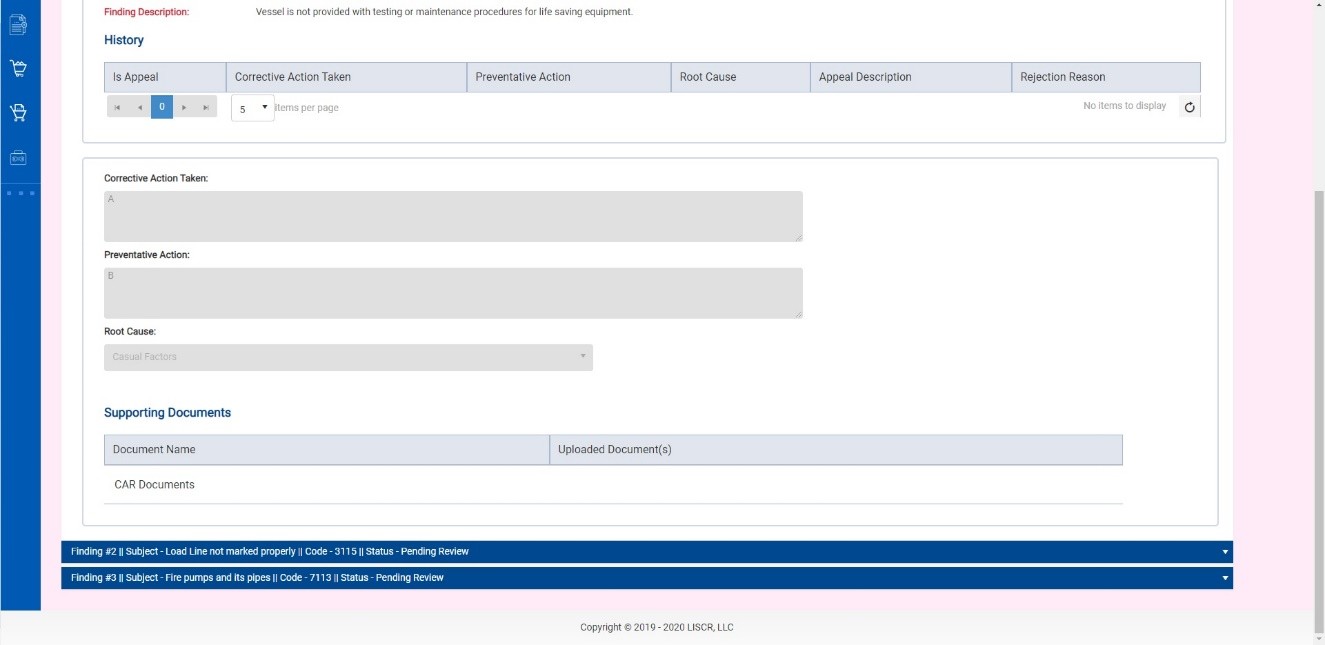
- Once all the findings have been addressed and you are satisfied with the information provided, click the green “Save” button as shown below. Once this information is saved, it cannot be changed. All fields will no longer be editable as shown in the next illustration.
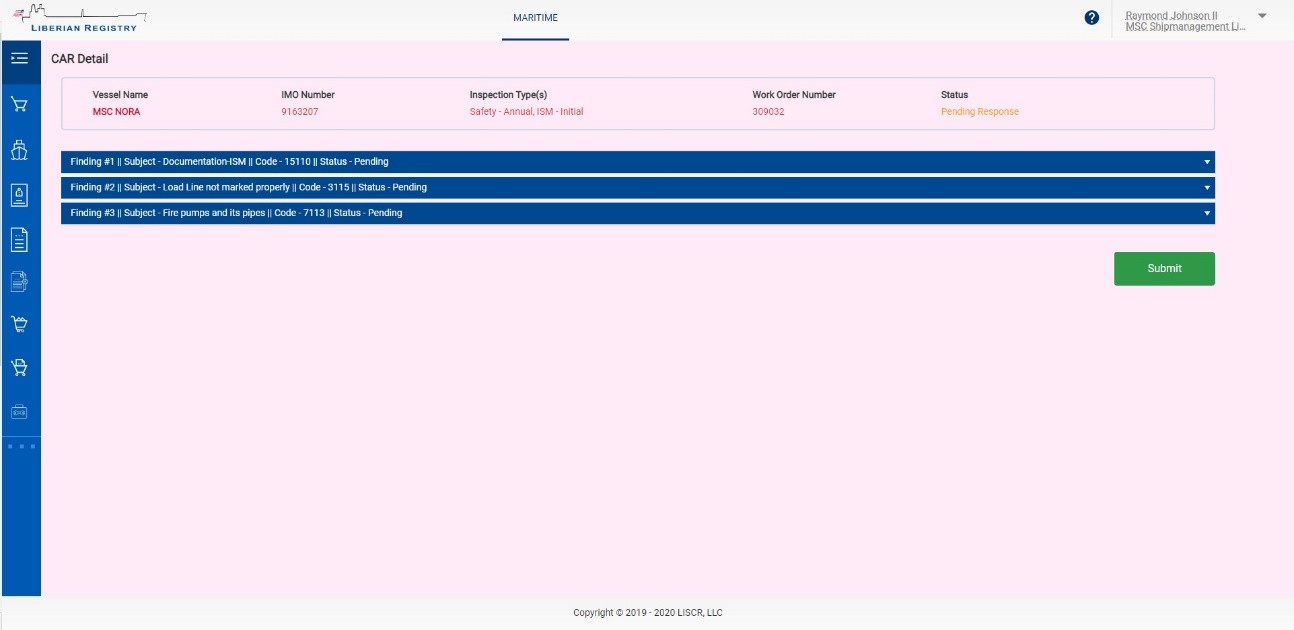
(no longer able to make edits or additions)