
Marine Operations Note: 02/2019 - Submission of Plans for Review and Verification
13 February 2019
Marine Operation Note 02/2019
13 February 2019
MARINE OPERATIONS NOTE 02/2019
Subject: Submission of Plans for Review and Verification
Dear Shipowners/Operators and Masters,
The purpose of this Marine Operations Note is to provide new interim guidance on submission of ships plans for review and approval by the Liberian Administration. The process will provide a more efficient way for vessel owners and operators to submit the following vessel plans and plan amendments for review/approval. This Marine Operations Note Supplements the following Marine Notices: ISP-001, POL-003; POL-005, POL-010, POL-011 and POL-0013, which will be updated in due course.
The following ship’s plans are covered by this process:
- Shipboard Oil Pollution Emergency Plans in accordance with MARPOL Annex I/Regulation 37;
- Shipboard Marine Pollution Emergency Plans in accordance with MARPOL Annex II/Regulation 17;
- Ship To Ship Transfer Plans in accordance with MARPOL Annex I/Regulation 41;
- Volatile Organic Compounds (VOC) Management Plans in accordance with MARPOL Annex VI/Regulation 15.6;
- Garbage Management Plans (approval is optional) in accordance with MARPOL Annex V/Regulation 10
- Ship Security Plans in accordance with Part 9 of the International Ship and Port Security Code*; and
- Ship Ballast Water Management Plans in accordance with the Ballast Water Management Convention, Regulation B-1.*
* All Ship Security Plans and Ship Ballast Water Management Plans are required to be approved by the Administration.
Process
Owners and operators should upload their vessel plans directly to “WayPoint” (the Administration’s website) for approval by the Administration. Guidance concerning how to access and use WayPoint for this purpose is provided separately in attachment 2. If necessary owners and operators may still forward plans electronically by email to planapproval@liscr.com.
All plans should be submitted in PDF format as one document of less than 10 MB. Contact planapproval@liscr.com or the Administration’s Regional Office in your region, if the plan cannot be reduced to 10MB. A list of offices is provided at the end of this document.
Ship’s Security Plans should be submitted as two separate secured PDF documents, (1) The Security Plan, and (2) The Ship Security Assessment, each less than 10 MB, , with an access key sent in a separate email to planapproval@liscr.com or the Administration’s Regional Office that will review the plan for approval.
Amendments to previously approved plans, should be submitted the same as the initial plan. A copy of the latest approved plan is not required, however it will help to maintain and update the Administrations records.
The Administration is no longer stamping the approved plans. Ship owners and operators shall ensure that all plans submitted for approval contain the revision date, which will be referenced in the plan approval letter. It is recommended that the vessels IMO number be used identify the plan in lieu of the vessel name to avoid the need to amend the plan due to name change only.
If not uploaded in WayPoint, plans shall be emailed to LISCR HQ at planppproval@liscr.com, with a copy to the Administration’s Regional Office in your region as follows:
LISCR Dubai: | OperationsDXB@liscr.com | |
LISCR Hamburg: | Ops.de@ycfmaritime.com | |
LISCR Piraeus: | PlanApproval@liscr.gr | |
LISCR Singapore: | info@liscr.sg | |
LISCR Shanghai: | China@liscr.com | |
LISCR Taipei: | taipei@liscr.com | |
LISCR Tokyo: | operations@liscr-japan.com |
For more information on this Marine Advisory, please contact the plan review department at PlanApproval@liscr.com telephone +1 703-790-3434.
Attachments: (1) How to reduce the PDF File size.
(2) How to submit your plan via Way Point.
* * * * *
2
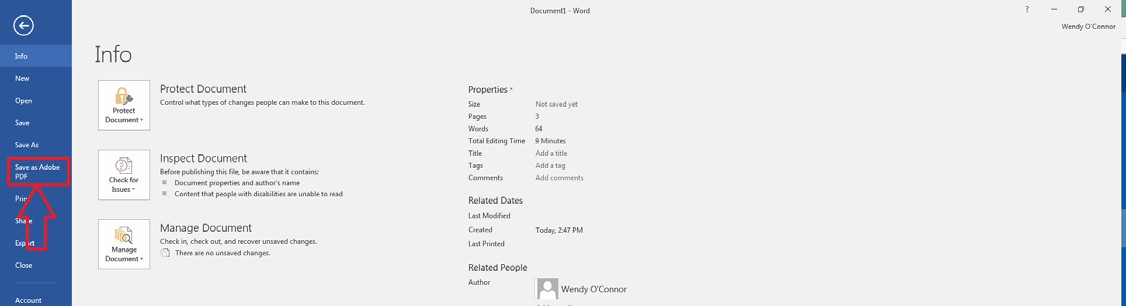
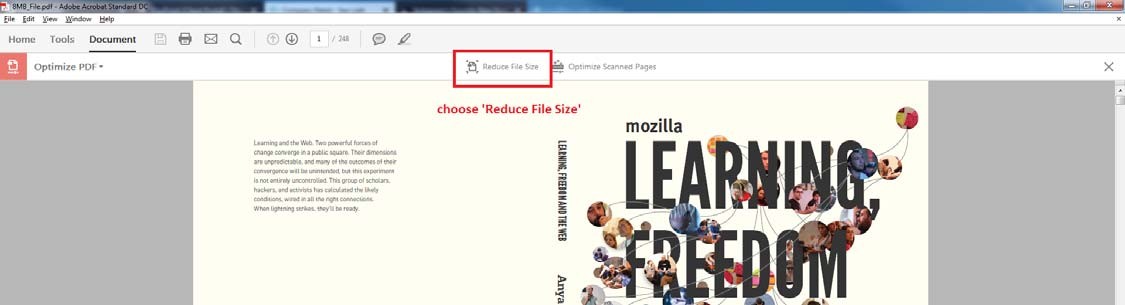
Reducing File Size If the original is a Word document, first save it as a PDF

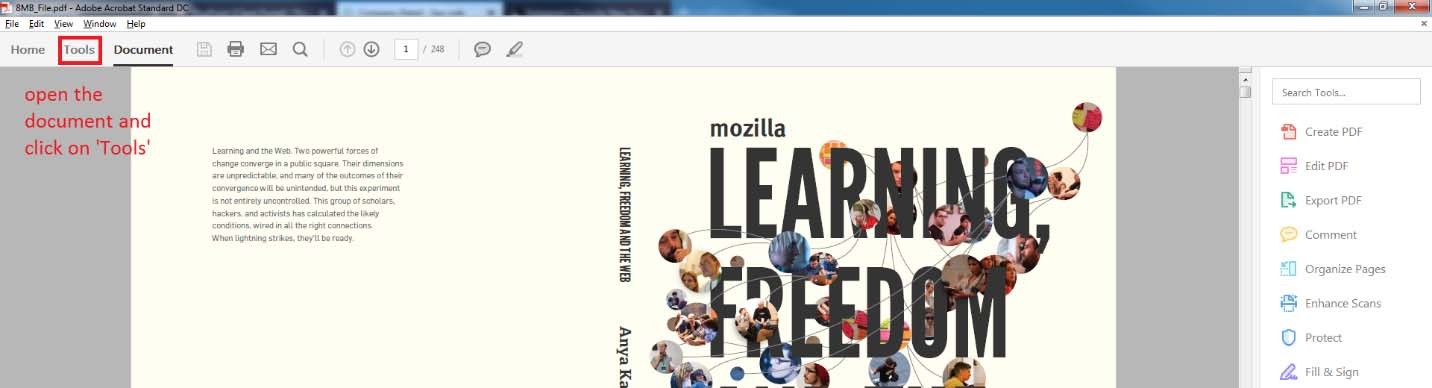
To reduce the file size of a PDF, open your document in Adobe and click on ‘Tools’

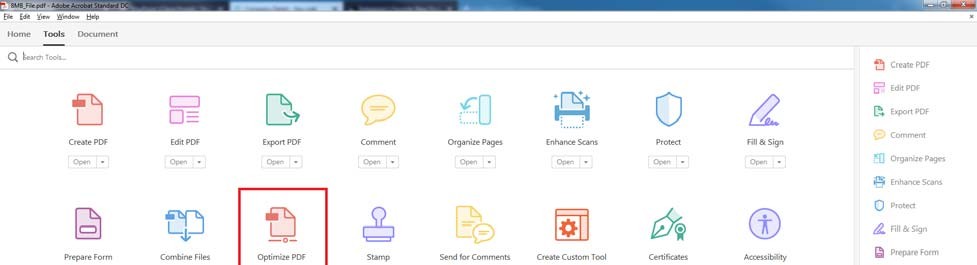
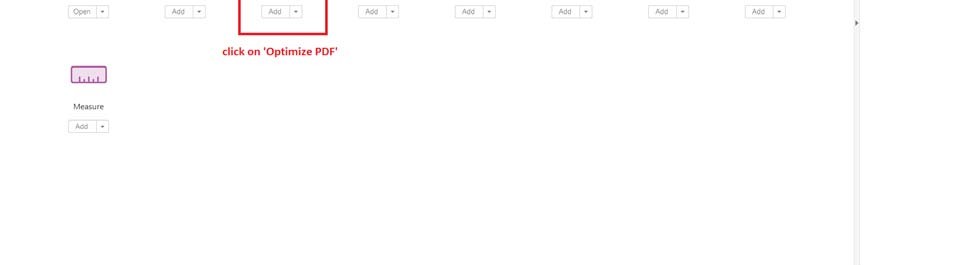
Now, click on ‘Optimize PDF’
Next, choose ‘Reduce File Size’

A pop‐up window will appear; choose ‘Retain Existing’ and click ‘Ok’
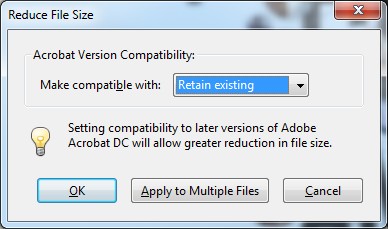
You can use the same name or re‐name the file.
APPLICATION INSTRUCTIONS – Plan Approval
Please carefully read the following guidance:
- Obtaining Access to WayPoint ‐ On the LOGIN page, please create an account if you don’t have one. You will be required to enter your name and company details so as to register your company. You will receive a temporary user name and password once you request has been processed. You will be required to change your temporary password when you login to your account the first time. Note: if your firm operates under different businesses, you may need to request an account for each in order to obtain access to your entire fleet.
- You may apply for multiple certificates/dispensations/publications by vessel. You can submit applications for multiple vessels within a single order, provided that you are using the same form of payment. Please have your form of payment information available. Orders can be submitted with credit card payments or wire transfer payment details.
- Complete all required page fields (*).
1. Starting the work order request for a plan approval
- It is possible to start a work order request for a Plan Approval Letter from two locations: o From the Vessel Particulars screen ‐ Press the ‘New Work Order’ button o From the dashboard ‐ Click the ‘Order Certificates’ icon.
This will take you to the work order start page. Here please:
- Select ‘Plans’ on the left side bar and then choose ‘Plan Approval’.
- Start entering the name of the vessel if not already pre‐populated. Note: the list of vessels is limited to those listed in your ‘My Fleet’. Please contact us if you believe that any vessels are missing.
- Press the ‘Start’ button
- “Details” screen
- From the dropdown, choose the type of plan to be reviewed.
- Next, choose the type of review from the dropdown (new or client amendment). o Type the revision number or the date of revision in the box marked ‘Revision’. o If you are paying for expedited review, check the box marked ‘Expediting Fee’.
- Upload the plan in the desired sequence Cover Sheet to last page as a PDF document, and any other files indicated in the work order. Note: The size of this file cannot exceed 10 megabytes. If the file cannot be reduced to greater than
- Click on ‘Continue’.
- “Documents” screen ‐ Here you can view a draft copy of the Plan Approval Letter requested. In addition, you can obtain a copy of your pre‐order invoice. Note: Details on both the draft letter and pre‐order invoice are subject to change as a result of information being entered by the user as well as during processing and issuance of the actual document.
- “Invoice” screen ‐ please enter your appropriate billing details for each vessel. You can view the estimated charges for this request. In addition:
- If your company uses a Purchase Order system, please enter the purchase order number for this invoice which will appear on the invoice
- If you would like to add a reference number to this invoice for your own company’s use, please enter it in the reference field.
- “Final Review” screen ‐ You will be able to review your order to know if all sections are properly completed. Sections that are not complete will list the tasks that are still required to be completed before the request can be submitted for processing. In addition, the tabs where these tasks need to be completed will have a red underline. If the final review has no additional tasks to complete you can: o Add to Cart ‐ in order to submit the request for processing and issuance of requested documents. o Save the work order for submission later by clicking the ‘Continue’ button. You can locate the work order request later from the dashboard by clicking on the ‘Pending Orders’ icon.
- Submission of work order requests via the Cart ‐ Completed work order requests that are ready for processing are submitted through the cart.
- In ‘My Cart’, you can view the requests that will be submitted.
- It is possible to remove requests from the cart by clicking the ‘remove’ button. They can be added later via the ‘Pending Orders’ icon.
- Your email address will appear in the eDelivery email address field. You can change this email address to the email address that you would like messages containing the issued documents and invoices to be sent. Please note that you will receive an email for each vessel that you request certificates for via the payment cart. Please ensure the following email address has been added to your SPAM filter: waypointsupport@liscr.com.
- Alternatively, you can choose not to receive your documents by email by removing the checkbox for eDelivery. Documents are available for download in WayPoint once processed via the ‘My Certificates’ page, which is accessed from the dashboard.
- Please indicate the method of payment
- Credit Card Payment ‐ you will be taken to the Credit card payment screen. Complete the payment details on this screen and click ‘Process Payment’.
- Wire Payment ‐ For wire transfer payments, please provide payment details including the effective date of the payment. You can also upload a copy of the wire payment confirmation.
- Once you have submitted your work order request, you can view the current status via the ‘Order History’ icon on the dashboard. ‘Active’ orders have been processed and requested documents issued.
- Plans may be approved by the Head office In Virginia or our regional offices in Hamburg, Piraeus, Shanghai, Singapore, Taipei, or Tokyo. If you do not receive a confirmation email from PlanApproval@liscr.com or the Regional Office you have previously contacted within one workday, please send a reminder email to PlanApproval@liscr.com or the particular regional office with a copy to PlanApproval@liscr.com stating the work order has been completed and is waiting in WayPoint.